

Scan Photos to PDF
Turn a phone photo, or one you took earlier, into a scanned PDF.
Select photos of your document
You can add several photos at once (up to 20). JPG, PNG and HEIC supported.
Try with an example
What it does
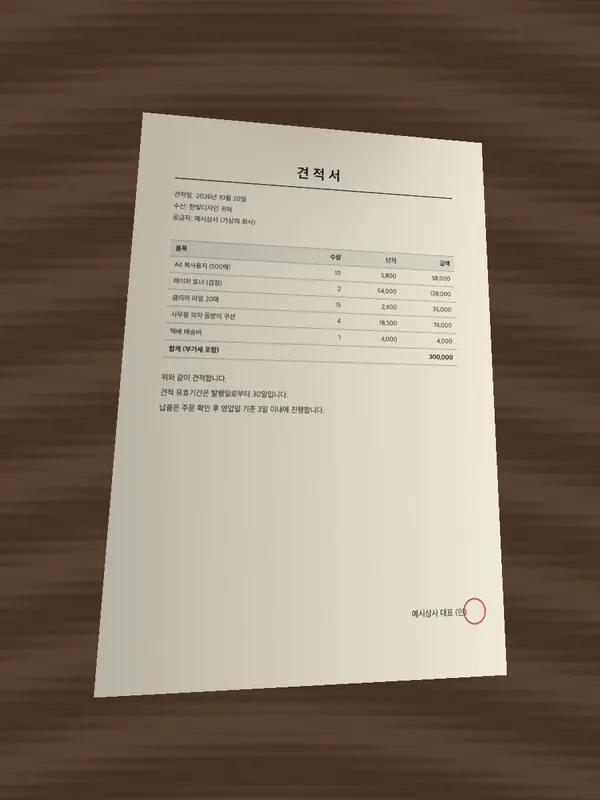
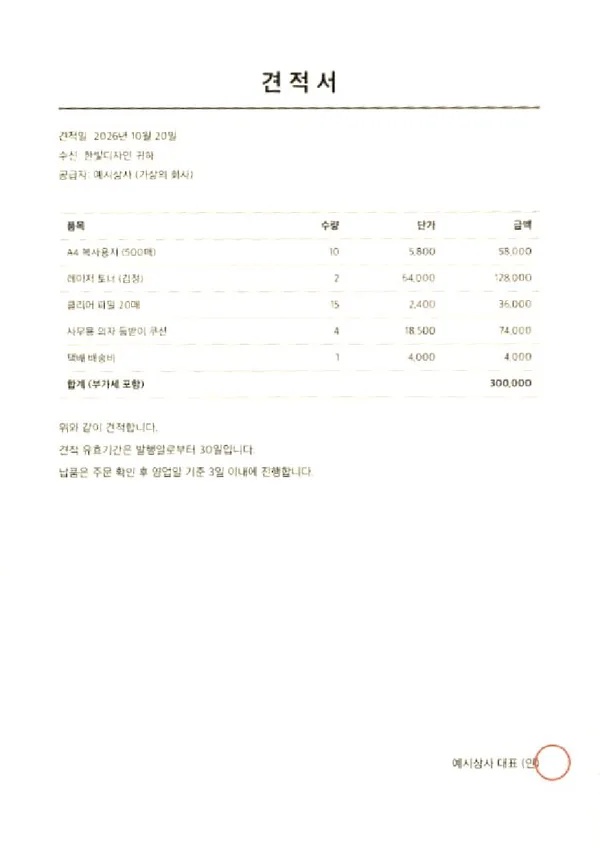
A quote photographed at an angle on a desk, straightened and cleaned of shadows into a PDF.
How to use
- Drop in the photos of your document, or click to choose them. You can add several at once.
- Check the preview for each page. If the document was picked up wrongly, move the four points yourself with Adjust corners.
- Choose an enhancement and page size, reorder the pages if needed, then press Create PDF.
FAQ
- Does it ever fail to find the document?
- Yes. It struggles when the surface has a busy pattern, when the paper and the background are close in colour, or when the page is crumpled or partly covered. Rather than returning something wrong, those pages are flagged 'Check this' so you can place the four points yourself with Adjust corners. A manually placed quad gives exactly the same output quality as an automatic one.
- How should I take the photo?
- Get the whole sheet in the frame and put it on a plain surface that contrasts with the paper. White paper on a dark desk works best. Shooting at an angle is fine; correcting that is the tool's job. What it can't fix is paper that is folded or curled, because flattening that isn't a matter of perspective.
- Which enhancement should I pick?
- For paperwork you're submitting, Document is the safe choice: it clears the shadows while keeping the colour of stamps and signatures. If the page is only text and you want a small file, Black & white produces the smallest result. If you want the photo's colours untouched and only the angle fixed, choose Original.
- What's the difference between the page sizes?
- Match photo sizes each page to the shape of the document, so no white margin is left. That's tidy for reading on screen or attaching to an email. A4 and Letter place the page on standard paper, which is what you want for printing or for submissions with a fixed format.
- Are my photos uploaded to a server?
- No. Finding the document, straightening it and building the PDF all happen inside your browser. The first time, the page downloads a file used for detection. That's the program coming to you; your photos never go the other way.
Related guides
- Turning a phone photo of a document into a proper scan
How to produce a submission-ready scan without a scanner: what to get right while shooting, how shadow and perspective removal work, and when black and white is the wrong choice.
Related tools
 JPG → PDF
Combine multiple JPGs into a single PDF.
 Crop Image
Drag to keep just the part you need. No loss of quality.
 Compress image
s to your target file size (KB or MB).